AI Optimizer for developers and command-line workflows
One of the clearest proven use cases for AI Optimizer is OpenAI API usage from the command line. If you repeat prompts, test requests, run scripts, or iterate locally, a caching proxy can help reduce duplicate spend without forcing you into a major rewrite.
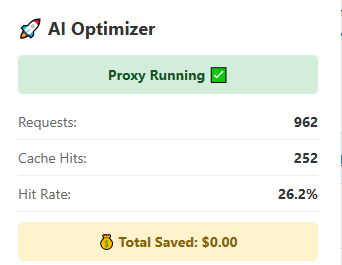
Useful for repeat-heavy CLI workflows
Command-line usage naturally creates repeated requests during testing, debugging, iteration, and prompt refinement. AI Optimizer gives those workflows one local path through a caching proxy.
Keep your current setup
You usually do not need to redesign your workflow. In many cases, the practical change is routing your OpenAI base URL through the local optimizer endpoint.
Verify cache activity fast
The extension view gives you a quick way to confirm requests and cache hits are climbing without needing the full desktop app open at all times.
A strong use case today
This is one of the clearest current positions for the product right now, especially for repeat-heavy local development, scripts, and OpenAI-compatible workflows like OpenClaw.
Typical config change
For many tools and scripts, the main setup change is pointing your OpenAI base URL at AI Optimizer:
OPENAI_BASE_URL=http://localhost:3000/v1That lets your local workflow hit the optimizer first, reduce repeated spend, and keep visibility into request behavior.